Guide for the dispatcher
A dispatcher’s day on the board and the map: assigning rides, tracking, phone bookings, waiting time, “no show” and complaints.
A dispatcher (DISPATCHER) works in Home, Rides, Fleet and Support → Quality. They do not see pricing or settlement — deliberately, so money is not touched from the dispatch desk.
Start of the day
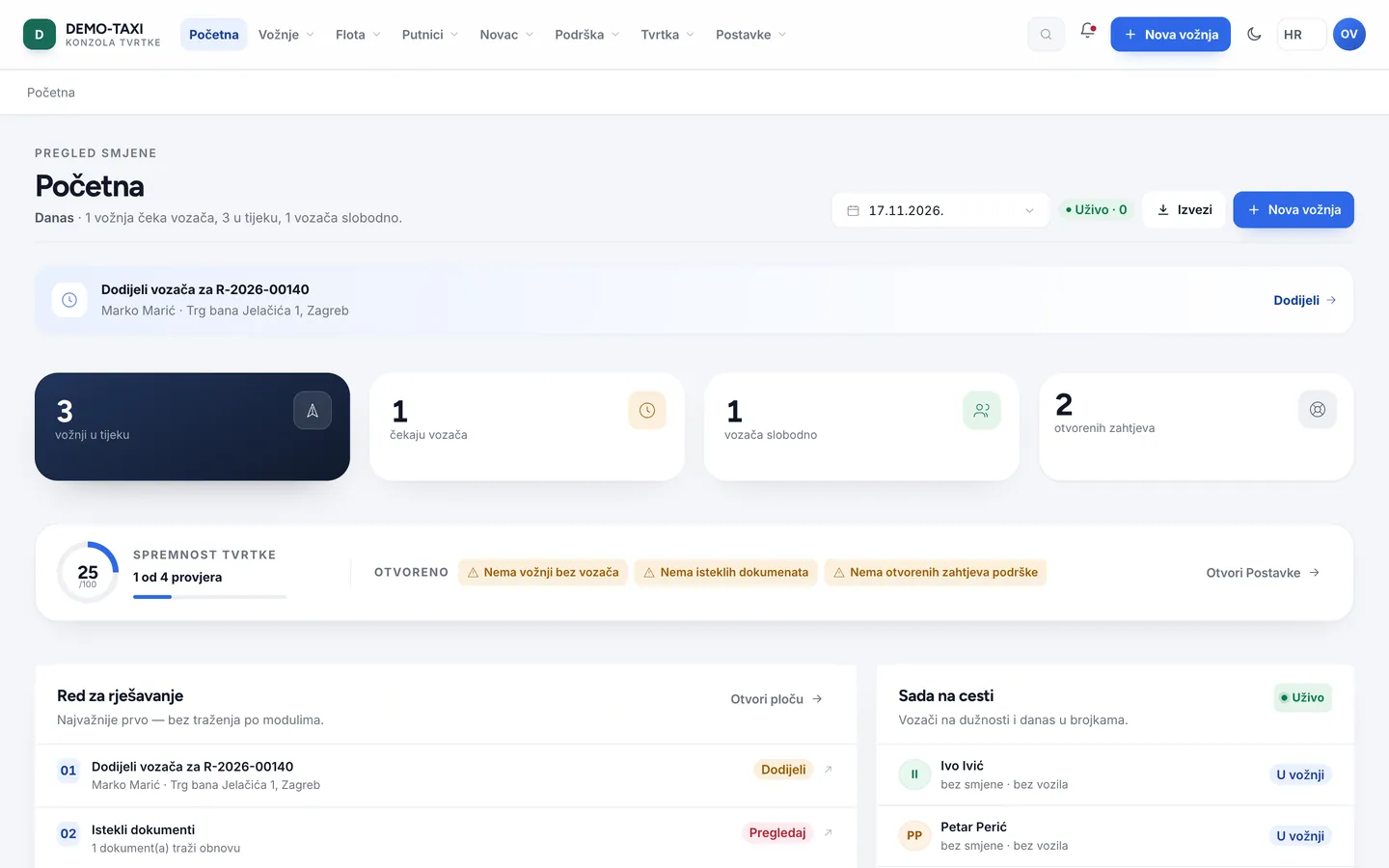
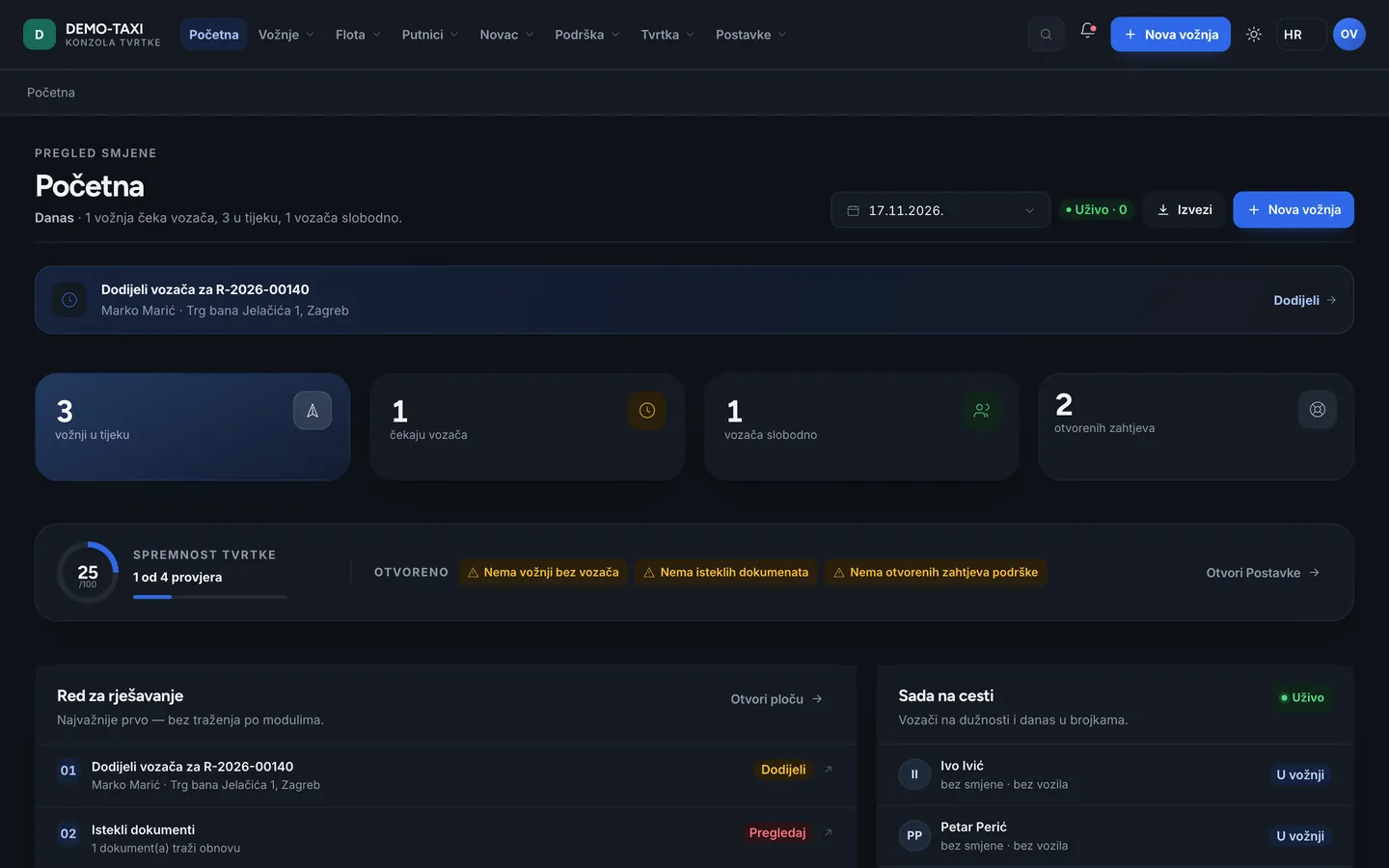
- Home: the first item is the work queue — rides without a driver, expired documents and support requests, ordered by urgency.
- Below are four figures: rides in progress, waiting for a driver, free drivers, open requests. If “waiting for a driver” grows, the problem is the fleet, not the board.
- On the road now shows who is on duty and in which ride — the list of people you can call.
Assign a ride
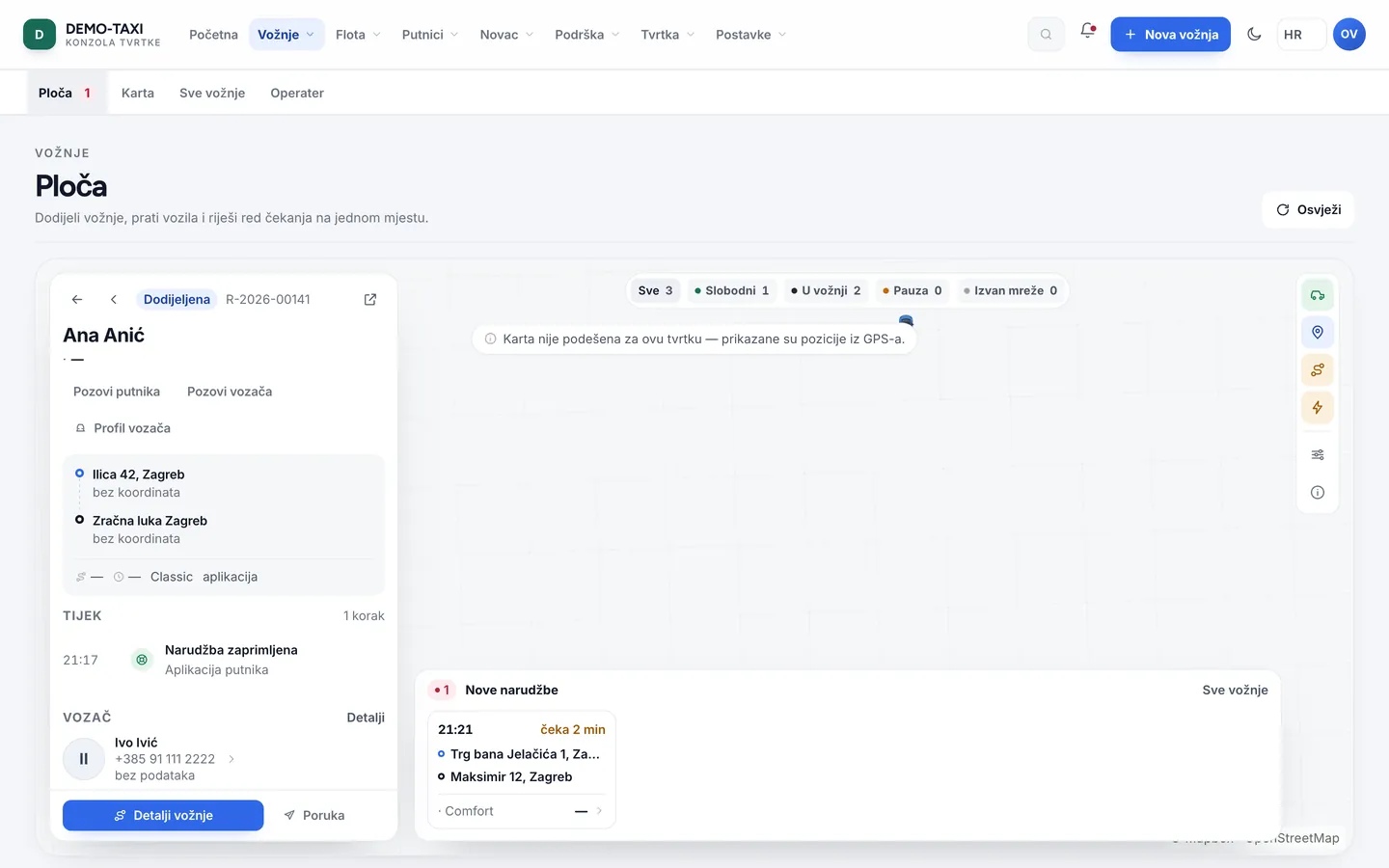
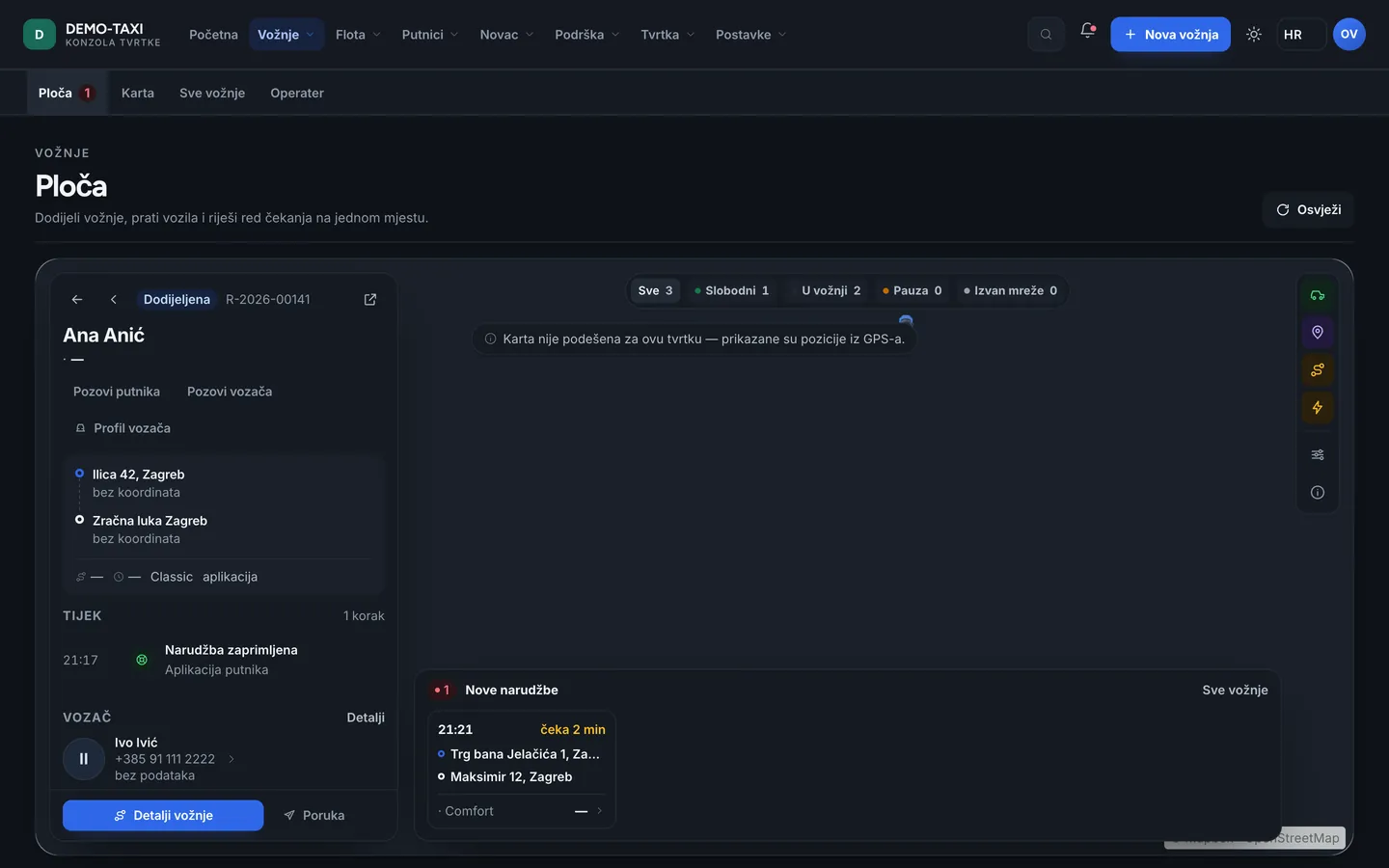
- Rides → Board: waiting rides sit in the order column; each shows how long it has been waiting.
- Open the ride and press Assign ride (or Assign to driver). The list only offers drivers who may take it: active shift, valid documents and a vehicle matching the service type.
- If the driver does not answer, the offer expires by itself and the ride returns to the queue — no ride is “lost”.
Map and tracking
- Rides → Map shows vehicles, zones and rides in progress in one view; layers are switched on as needed.
- Colour and icon show the difference between a free driver, one heading to the passenger, and one with the passenger on board.
- If a driver stands still for a long time, that is a reason to call, not to change the state by hand.
Phone booking
- Rides → Operator or the New ride button on the board: enter the pickup address, destination, passenger name and phone, and the service type.
- Pick the payment method (cash or card) — it decides what the driver sees and how the ride is booked.
- Confirm. The ride enters the same queue as app bookings and gets a number (
R-…).
During the ride
| Situation | What to do |
|---|---|
| The passenger is not coming out / the driver waits | Check the waiting time in the ride; when it runs out the driver records Passenger not here (NO_SHOW) and the ride closes |
| The passenger cancels | Cancel from the ride detail with a reason; the reason appears in history and in quality |
| A driver wants the next ride before finishing | Only with the addon.back_to_back module; without it the system does not offer the next ride |
| A caller asks about a ride “in progress” that the driver finished | Refresh the list; the board state always comes from the server, not a local copy |
Quality and complaints
- Support → Quality: ratings and tags from the passenger app, next to the ride and the driver. A poor rating does not remove the ride from settlement.
- Support → Requests: passenger complaints with the conversation history; you answer from the console and the passenger sees it in the app and by e-mail.
- When a complaint involves money (refund, correction), the owner or accounting resolves it — a dispatcher does not change settlement.
The usual blockers
| What you see | What it means | What to do |
|---|---|---|
| A driver is missing from the assignment list | No shift, expired document, or the vehicle does not match the service type | Check Fleet → Drivers → Documents and Alerts |
errors.launchNotReady | The company has not passed the readiness gate | Home → Company readiness shows what is missing |
| The ride cannot be cancelled | It is already finished or cancelled (errors.rideTransitionNotAllowed) | Refresh the ride; then create a new one if needed |